Creating an Application
Use the steps below to create a Tenant Application for one of the listed Units.
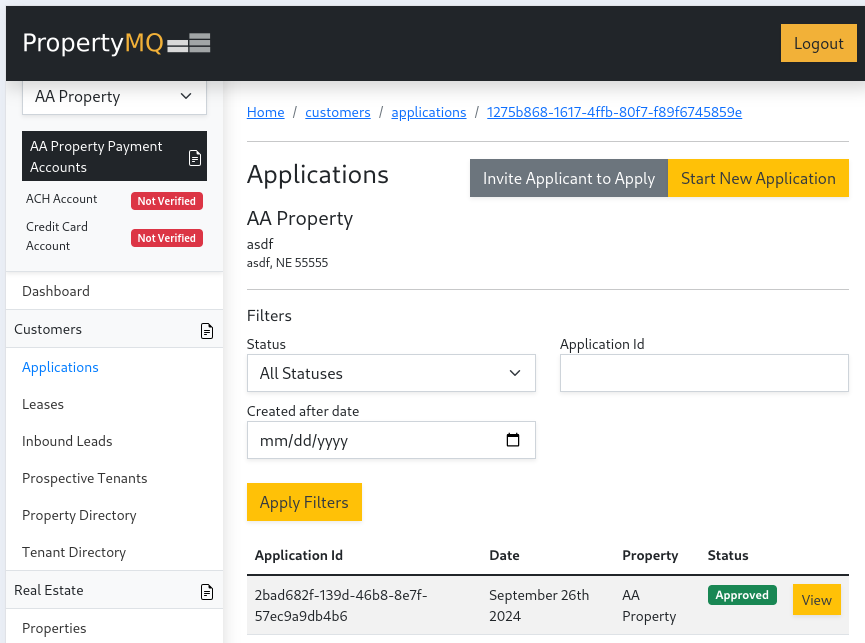
- First select the correct Portfolio and Property in the left navigation panel. Then under
CustomersselectApplications. Then on the top of the page click theStart New Applicationbutton.
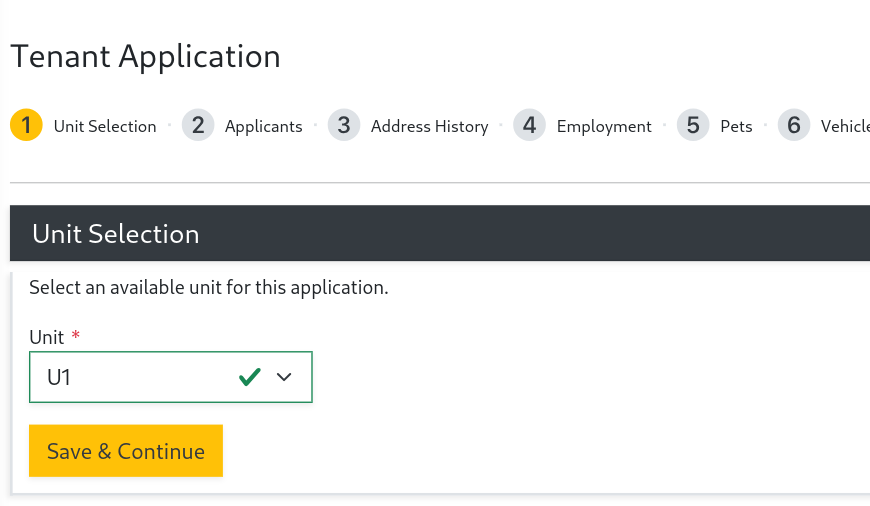
- Select the
Unityou would like to create an application for.
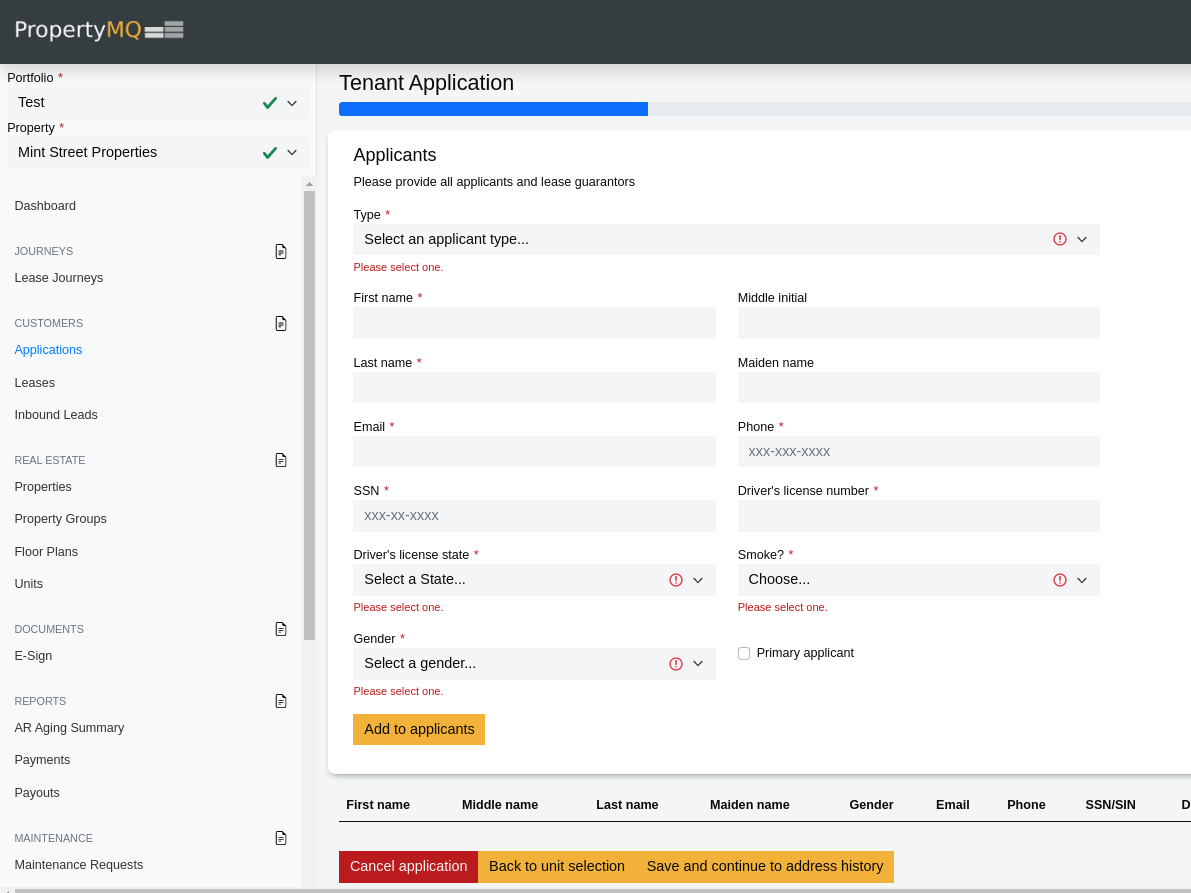
- (Required) Under
Applicantsenter the following information for each applicant and clickadd to applicants, then clicksave and continue to address history:
If you do not have the applicants phone, social security, or drivers license number you can enter all zeros. This can be edited later.
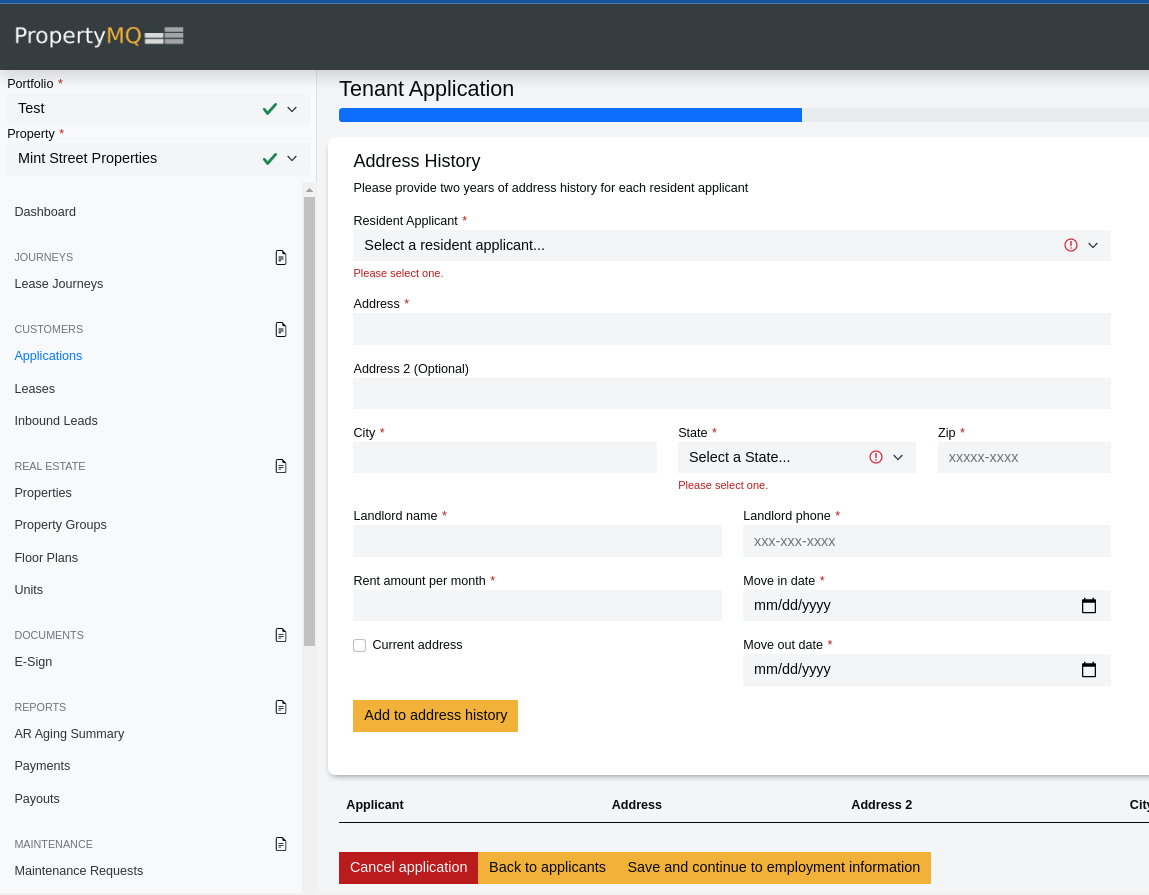
- (Optional) Under
Address Historyfill out the Tenants residential deatails of the past two years and clickAdd address historythen clickSave and continue to employment information.
This is an optional part of the application. To skip select Save & Continue at the bottom.
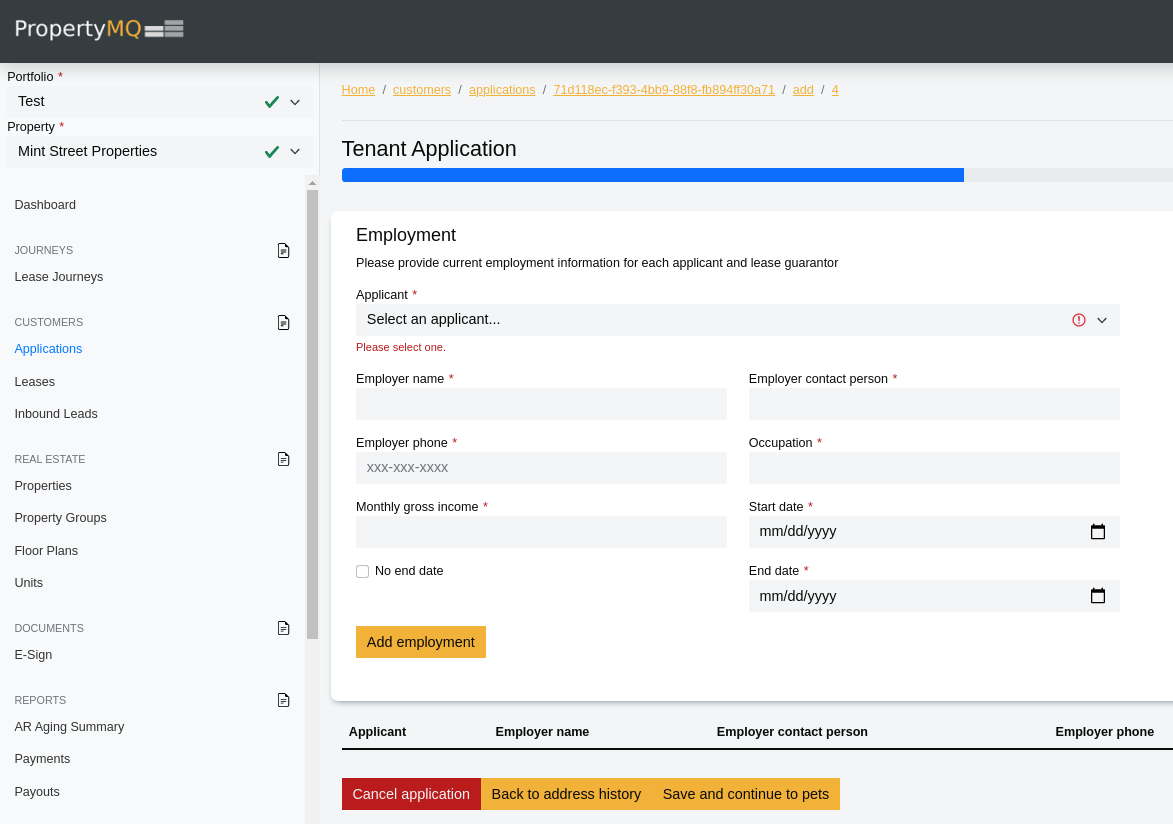
- (Optional) Under
Employmentfill out the tenants employment details and clickAdd employmentthen clickSave and continue to pets.
This is an optional part of the application. To skip select Save & Continue at the bottom.
- (Optional)
Petsis an optional step. In the event the Tenant does not have pets this can be skiped otherwise fill out the information below and clickAdd petthen clickSave and continue to Vehicles.
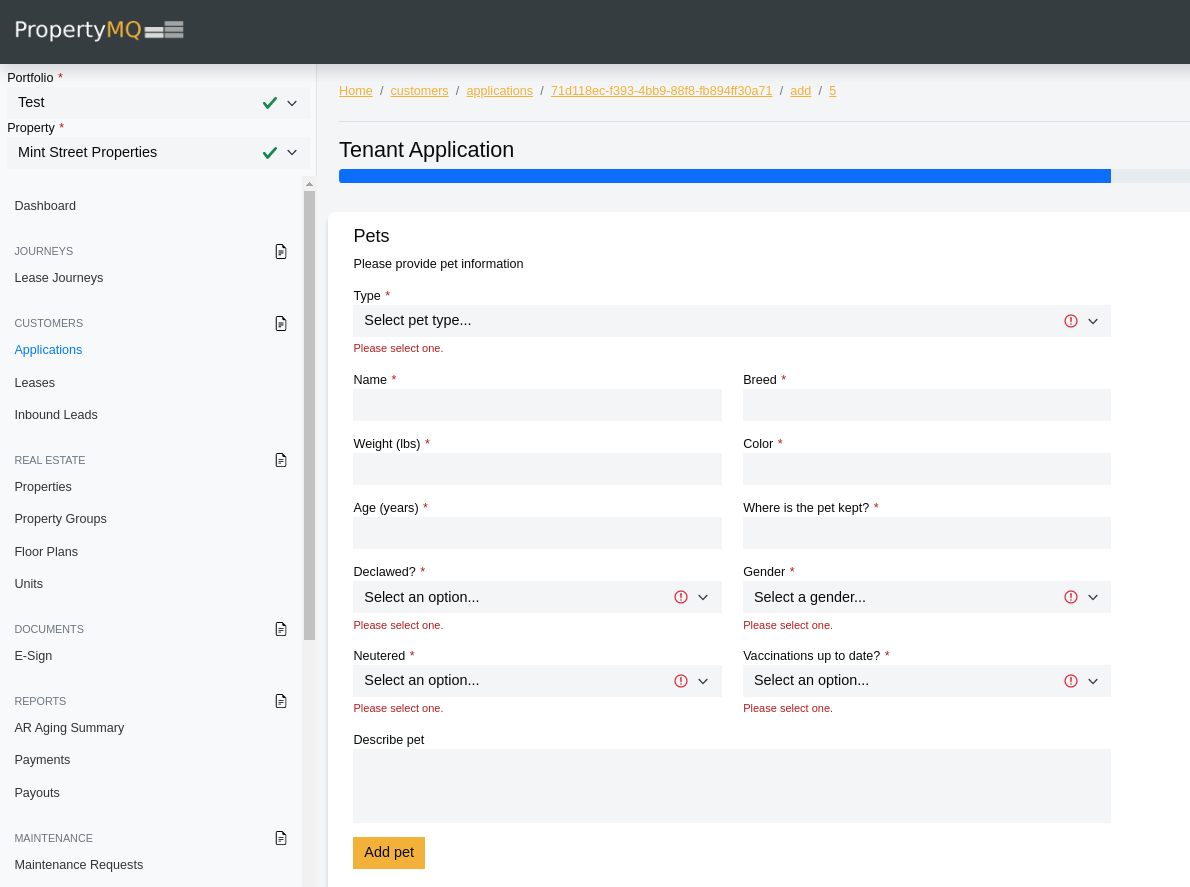
This is an optional part of the application. To skip select Save & Continue at the bottom.
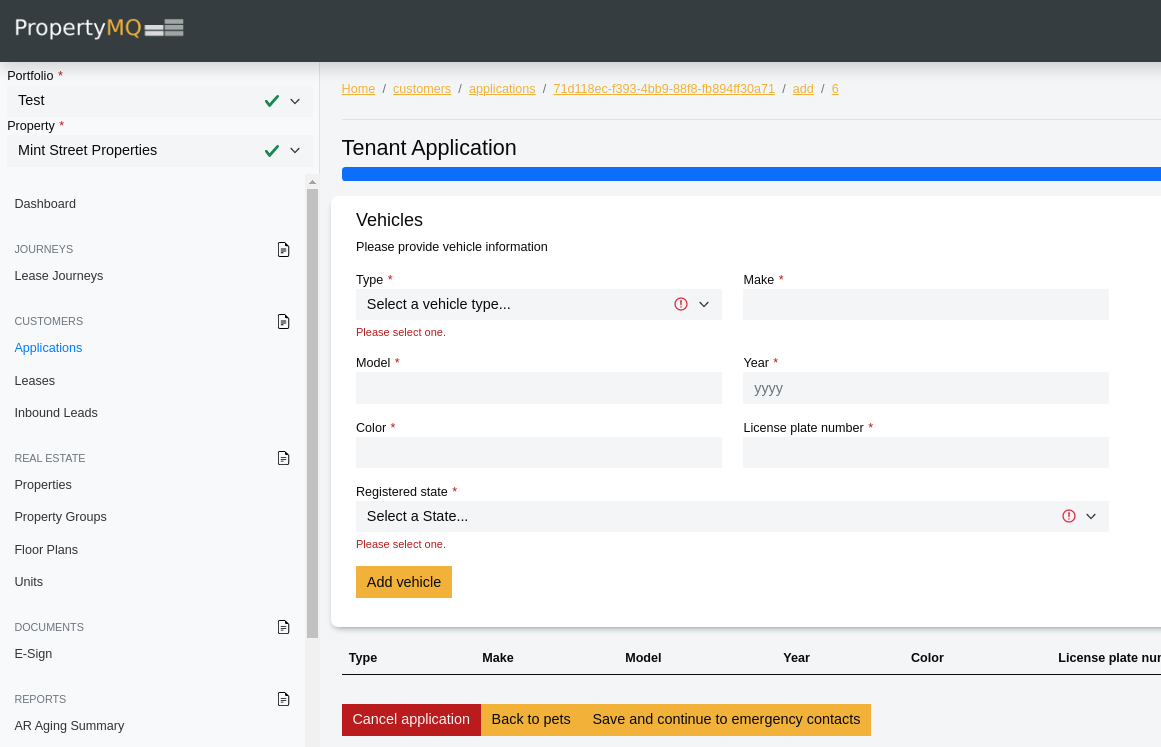
- (Optional) Under
Vehiclesfill out the information below for each vehicle owned by the tenant and clickAdd vehiclethen clickSave and continue to emergency contacts.
This is an optional part of the application. To skip select Save & Continue at the bottom.
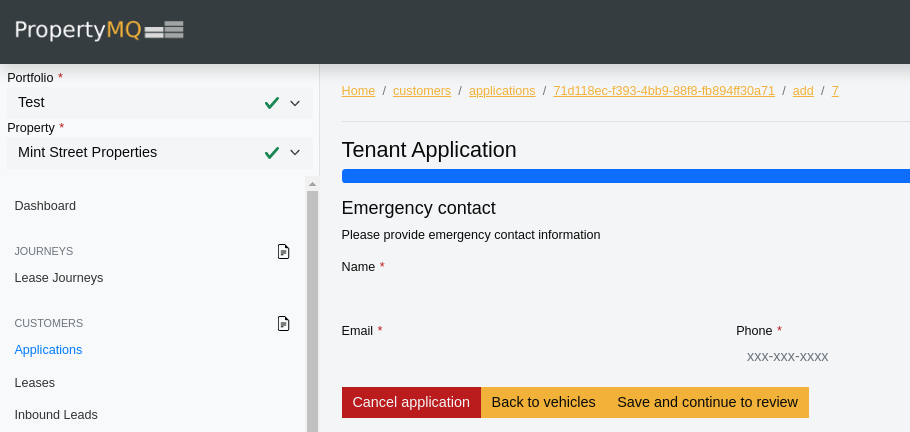
- (Optional) Under
Emergency contactfill out the information below then clickSave and continue to review.
This is an optional part of the application. To skip select Save & Continue at the bottom.
- Review the application for accuracy and then click
continue to legal.
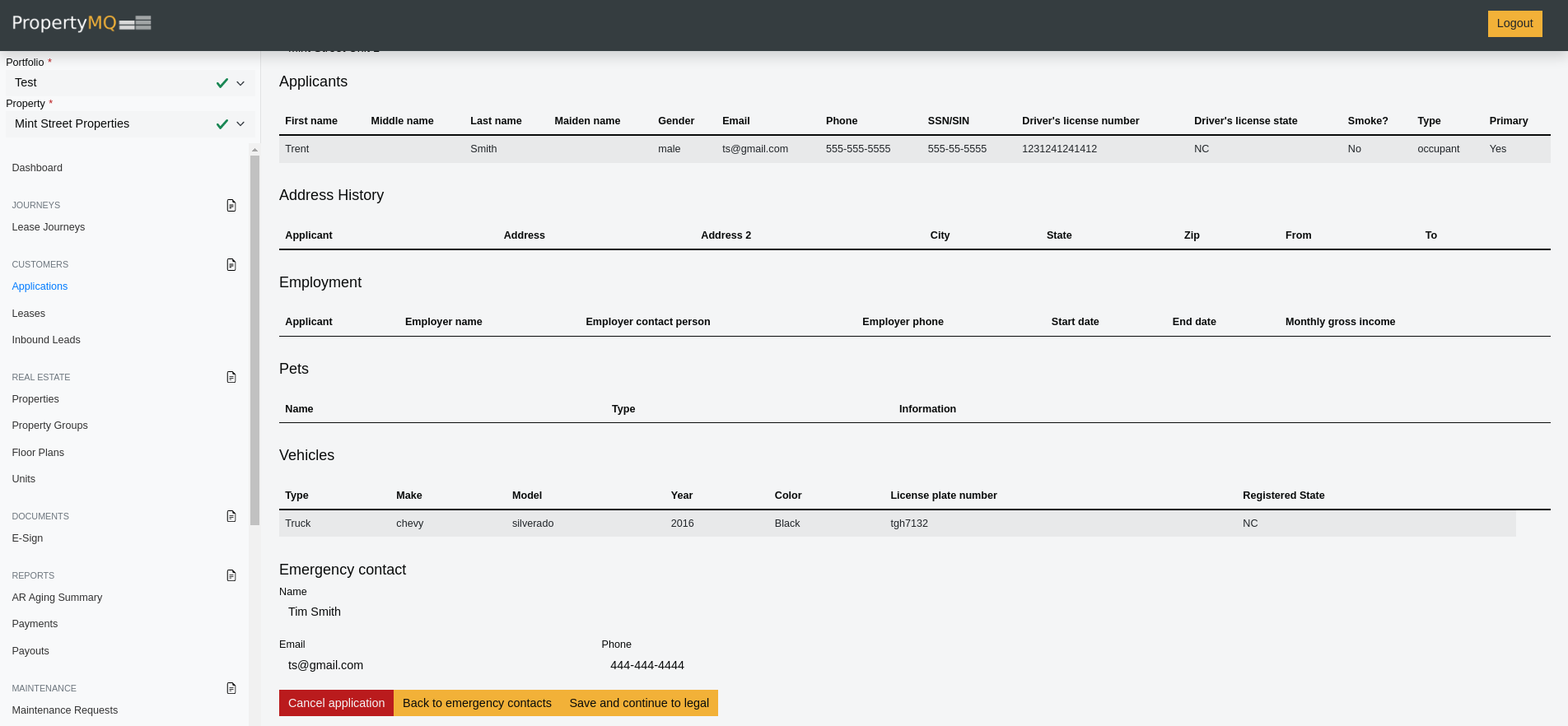
- Read the Tenant Application Legal statement and check the agreement box. Then click
Submit.
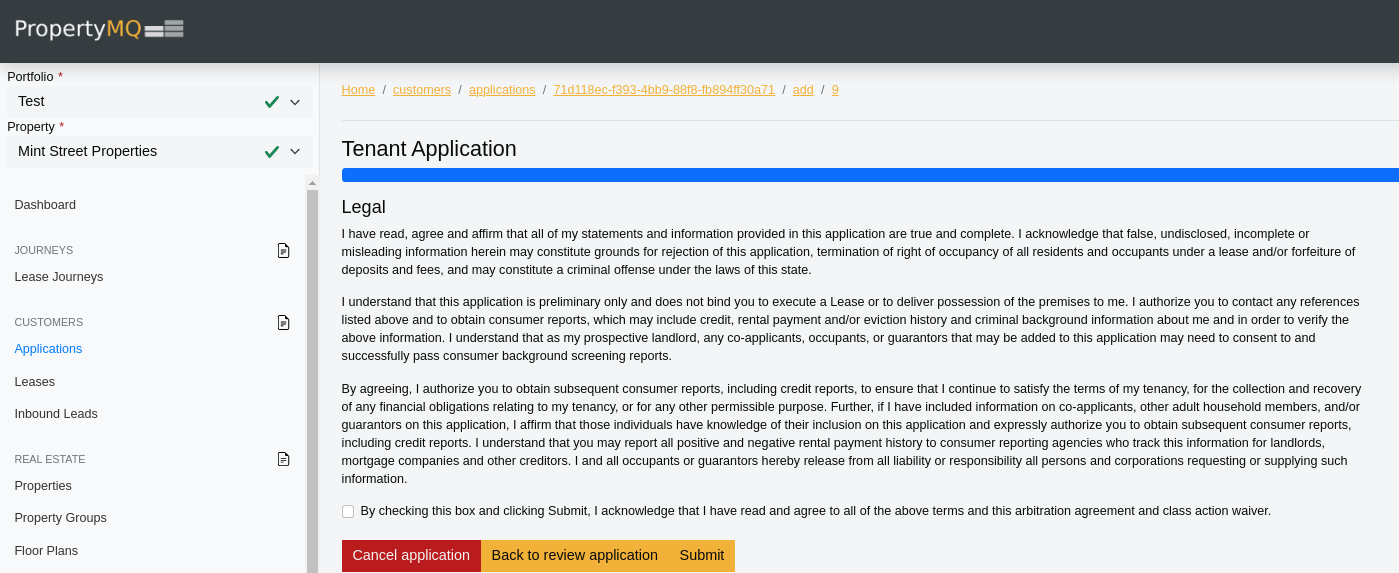
- After submitting, a unique application ID is generated.
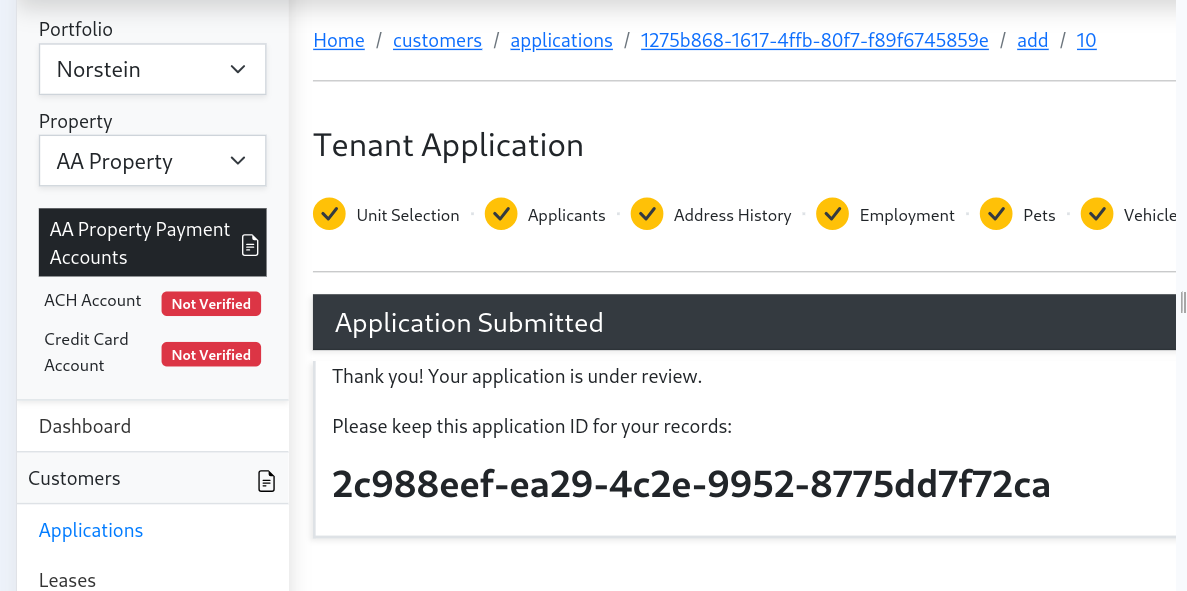
Now that the application has been created it can be reviewed and accepted and a Lease created.